
How to Log In to WordPress Through Your Web Hosting
You can access your WordPress dashboard directly through your web hosting control panel or by using the standard WordPress admin login URL. This guide explains both methods step by step.
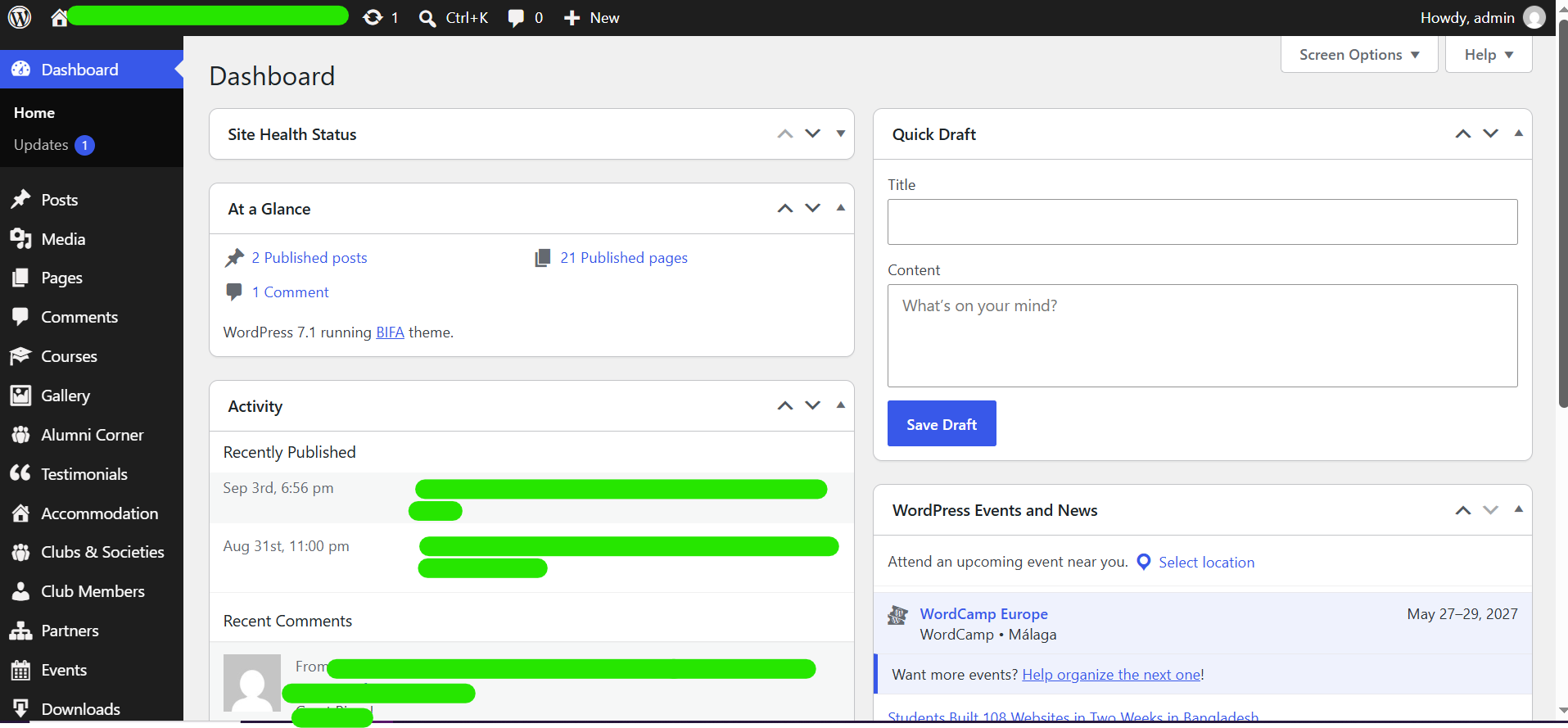
Log In to WordPress Through Your Web Hosting
Many web hosting providers include a WordPress management tool that allows you to access your WordPress dashboard without manually entering your WordPress administrator password.
Step 1: Log in to your hosting account
Start by signing in to your web hosting customer account or hosting control panel.
Depending on your hosting provider, the section containing your website may be called:
- Websites
- Hosting
- Manage Services
- My Services
- WordPress
- WordPress Manager
- WP Manager
- WordPress Toolkit
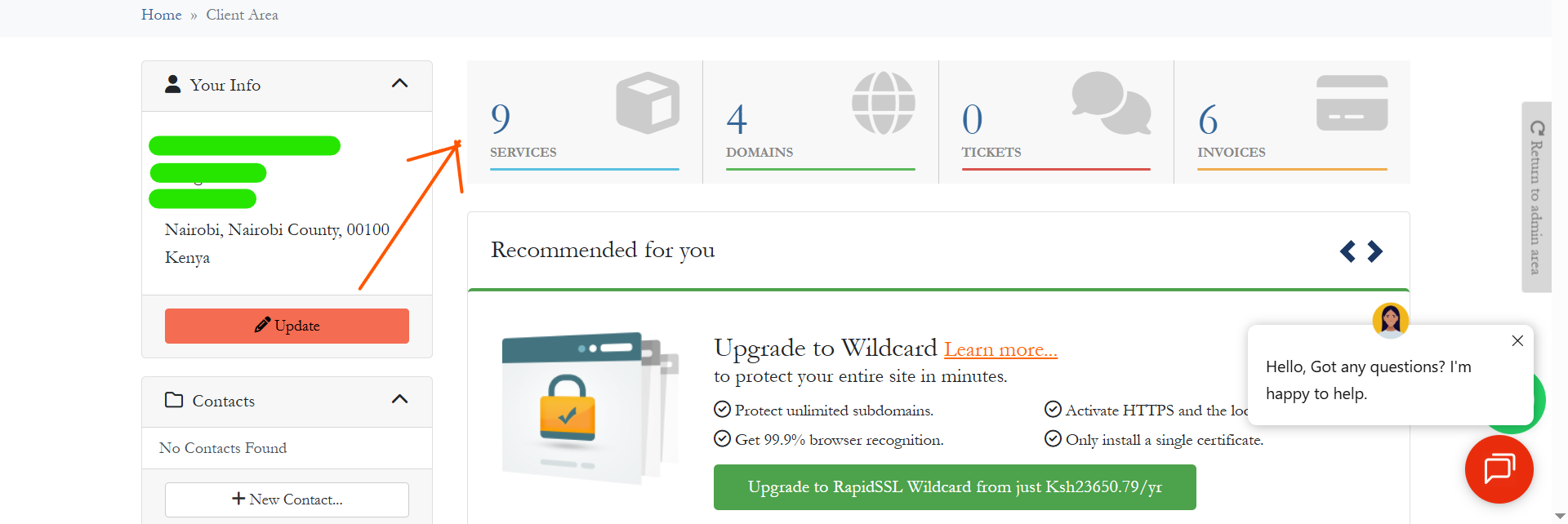
Step 2: Select your website
After logging in to your hosting account, open the section where your websites or hosting services are listed.
Select the domain or website associated with the WordPress installation you want to access.
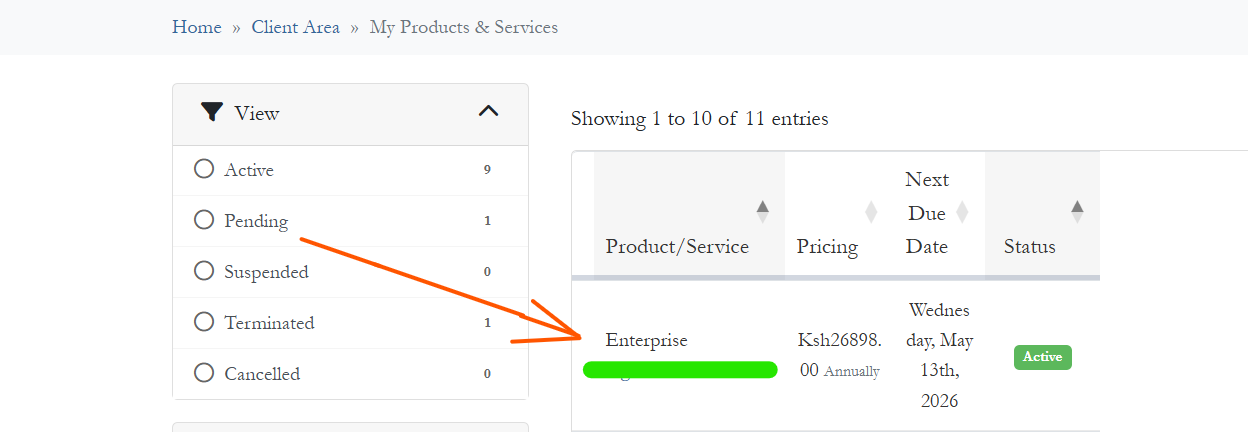
Step 3: Open the CPanel section
Look for an option labelled Log into CPanel
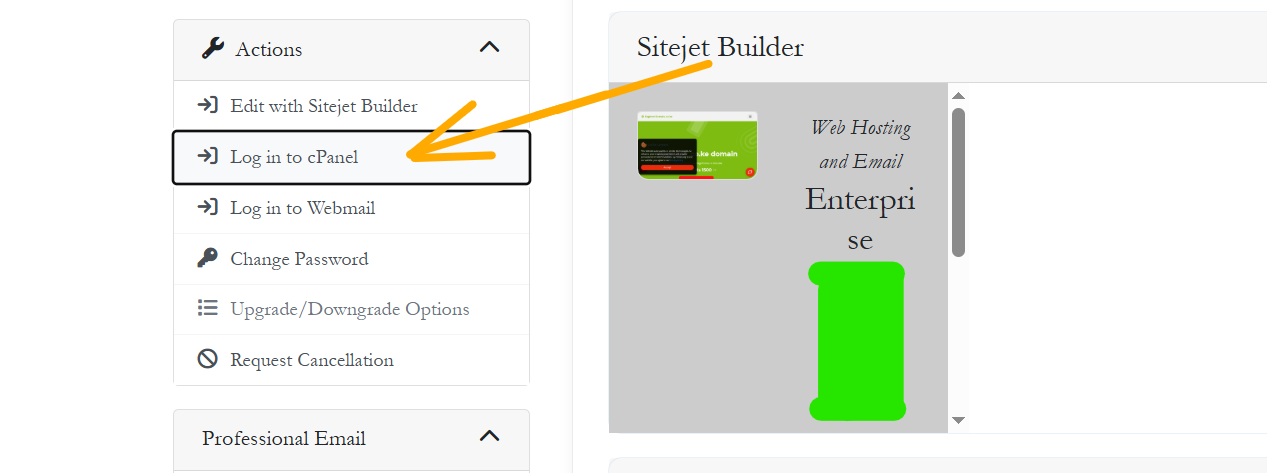
Step 4: Open the WordPress manager
Look for an option labelled WordPress, WordPress Manager, WP Manager, or WordPress Toolkit.
The exact name and location of this option can vary depending on your hosting provider and control panel.
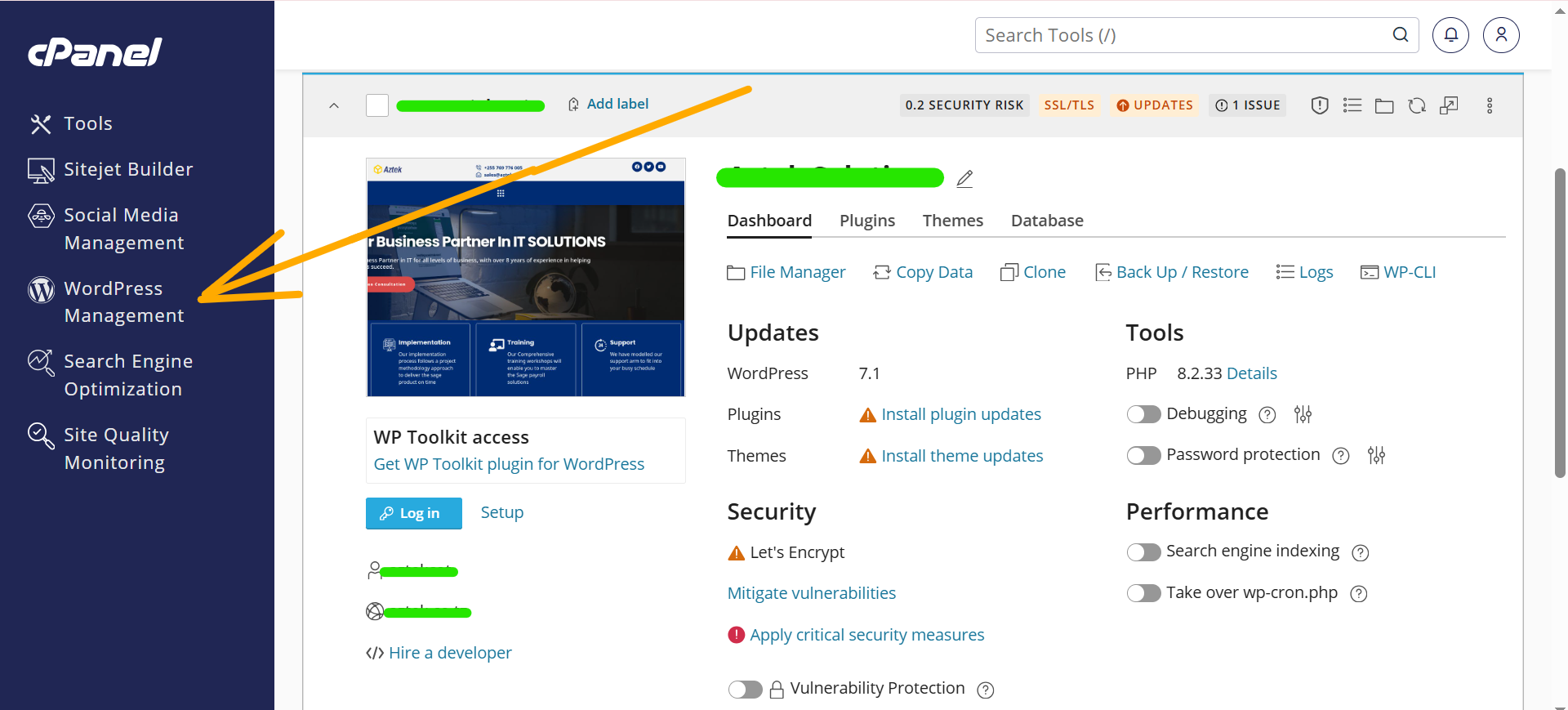
Look for a button labelled Admin Panel, Dashboard, WordPress Admin, Manage, or Login.
If your hosting provider supports automatic WordPress login, clicking this option may open your WordPress dashboard automatically without requiring you to enter your WordPress password.
Log In to WordPress Directly Using the Login URL
You can also access the WordPress login page directly from your web browser.
For most standard WordPress installations, use one of the following URLs:
https://yourdomain.com/wp-admin/https://yourdomain.com/wp-login.php
Replace yourdomain.com with your actual domain name.
For example, if your website is example.com, visit:
https://example.com/wp-admin/
Enter your WordPress login details
On the WordPress login page, enter your WordPress username or email address and your password.
Click Log In to access your WordPress dashboard.
How to Log In to WordPress Using cPanel
If your hosting account uses cPanel, you may have access to a WordPress management application such as WordPress Toolkit or another WordPress management tool.
- Log in to your cPanel account.
- Locate the WordPress management section.
- Select your WordPress installation.
- Look for an Admin, Dashboard, or Log In option.
- Click the available option to open your WordPress dashboard.
If your hosting provider does not offer automatic WordPress login, you can use the standard /wp-admin/ or /wp-login.php URL instead.
What Is the WordPress Dashboard?
The WordPress dashboard is the administration area of your WordPress website. From the dashboard, you can manage your website's pages, posts, themes, plugins, users, settings, and other website features.
The WordPress dashboard is also commonly called the WordPress admin panel, WordPress backend, or WordPress administration area.
What If the WordPress Login Page Does Not Open?
If you cannot access your WordPress login page, check the following:
- Make sure you are using the correct domain name.
- Confirm that your website is active and accessible.
- Make sure you are using the correct HTTPS address.
- Try both
/wp-admin/and/wp-login.php. - Clear your browser cache and try again.
- Try accessing the website using another browser or device.
- Check whether a security plugin has changed or restricted your login URL.
- Contact your hosting provider if the website itself is not accessible.
What If I Forgot My WordPress Password?
If you have forgotten your WordPress administrator password, open the WordPress login page and click Lost your password?.
Follow the instructions provided by WordPress to reset your password using the email address associated with your administrator account.
If you cannot access the administrator email account or password recovery does not work, contact your hosting provider for further assistance.
Related article: How to Reset Your WordPress Password
WordPress Login Frequently Asked Questions
How do I log in to my WordPress dashboard?
You can normally log in by visiting https://yourdomain.com/wp-admin/ or https://yourdomain.com/wp-login.php and entering your WordPress username or email address and password. You may also be able to access WordPress directly through your web hosting control panel.
What is the WordPress admin login URL?
The standard WordPress administrator login URL is usually https://yourdomain.com/wp-admin/. WordPress also commonly uses https://yourdomain.com/wp-login.php.
Can I log in to WordPress from my hosting account?
Yes. Many web hosting providers offer a WordPress management tool that lets you access the WordPress dashboard directly from your hosting account.
Do I need my WordPress password when logging in through hosting?
If your hosting provider supports automatic or single-click WordPress login, you may not need to manually enter your WordPress password. The exact functionality depends on your hosting provider.
Why can't I access wp-admin?
Common causes include incorrect login details, a changed WordPress login URL, security restrictions, website configuration problems, domain or DNS issues, or an unavailable website.
How do I reset my WordPress password?
On the WordPress login page, click Lost your password? and follow the password recovery instructions. If you cannot recover your account using email, contact your hosting provider for assistance.
Need Help Accessing Your WordPress Website?
If you have followed the steps above and still cannot access your WordPress dashboard, contact our support team.
When contacting support, provide your domain name and describe the error or message you see. This will help our support team troubleshoot the problem more quickly.