
How to Fix 504 Gateway Timeout Error 9 possible corrections to take
504 gateway timeout is a hypertext transfer protocol (HTTP) status code that appears when a server fails to get a timely response from another upstream server.
Like the 500 internal server and 502 bad gateway errors, it’s one of the most common server errors both users and website owners encounter.
Every second of downtime can harm your WordPress site’s search engine performance. Therefore, as a website owner, you need to fix this issue as soon as possible.
Debugging the 504 gateway timeout error can be challenging due to the high number of potential causes. In most cases, you can resolve it by refreshing the web page.
This article will go over the possible causes of the 504 gateway timeout error. We’ve included troubleshooting tips to help you get the site up and running in no time.
What Is 504 Gateway Timeout?
When you visit a website, your browser generates requests and sends them to web servers holding the required content. Each time a request is handled, the server sends back an HTTP status code along with the requested resources.
The 504 gateway timeout error occurs when one server does not receive a timely response from another server acting as a gateway or proxy. As a result, the proxy server cannot retrieve the required content from the database, preventing the web page from loading its content.
Various HTTP status codes refer to different responses. HTTP status codes beginning with the digit “5” indicate server-side errors. They appear whenever it’s impossible to complete a request due to miscommunication between servers.
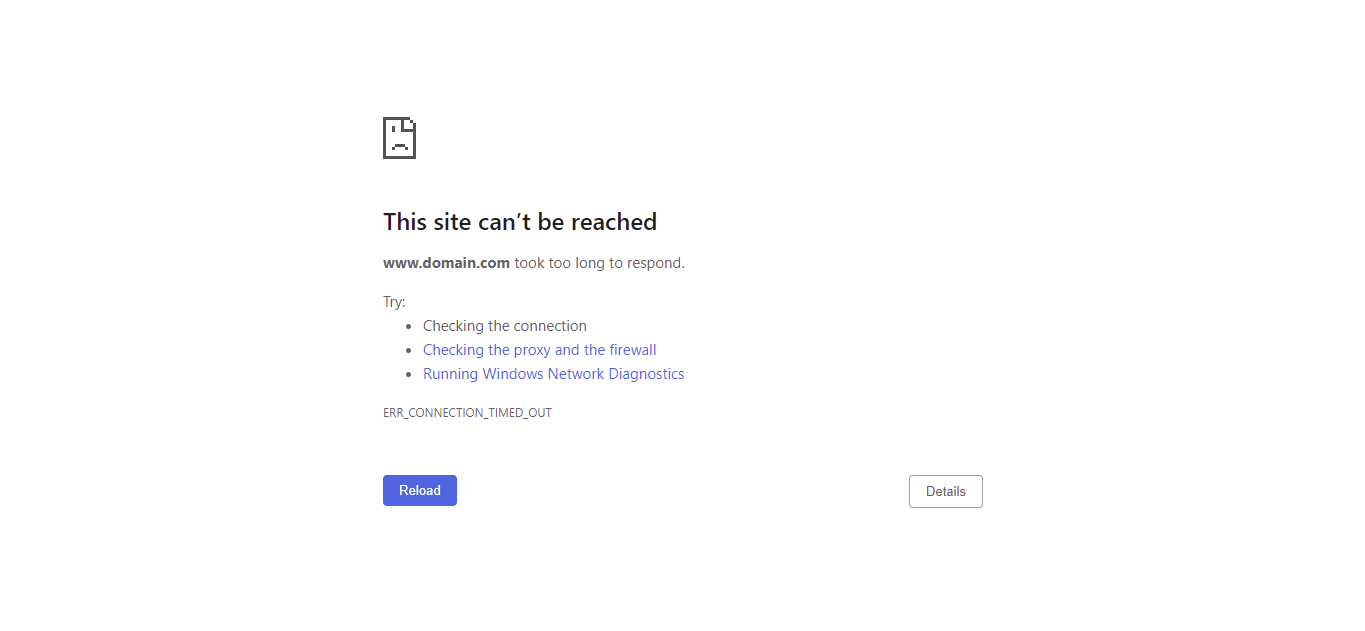
This HTTP error can appear in different forms and various error messages across browsers, servers, and operating systems. Here are the most common ones:
- 504 Gateway Timeout NGINX
- Gateway Timeout Error
- Gateway Timeout (504)
- HTTP Error 504
- Error 504
- 504 Error
- 504 Gateway Time-out. The server didn’t respond in time
- This page isn’t working. Domain took too long to respond
- HTTP Error 504 – Gateway Timeout
- 504 Status Code
- 504 Error Code
Determining the causes is the first step of fixing the 504 Gateway Timeout error. Here are several problems that may cause 504 gateway timeout:
- Firewall issues. The DDoS protection and mitigation systems of some firewalls may block requests from a specific internet service provider or a content delivery network like Cloudflare. Faulty firewall configuration may also be the issue.
- Unresolvable domain. This occurs when a domain fails to resolve to a correct IP address. This issue could happen when a website has been recently moved to a different IP address or hosting nameserver.
- Connectivity issues. If the 504 Gateway Timeout error appears on multiple browsers, devices, or websites, your network equipment might be experiencing temporary connection problems.
- Web server overload. A web server running low on resources can get overloaded and thus respond to browser requests slowly, causing the other server to time them out.
- Limited PHP workers. These components handle requests whenever a visitor takes action on a WordPress website. Without sufficient PHP workers, your website might fail to process multiple requests.
- Domain Name System (DNS) issues. These include an incorrect DNS configuration and an outdated or corrupted DNS cache.
How to Fix 504 Gateway Timeout Error
In most cases, 504 gateway errors have server-side causes. However, they may also pop up due to issues or an incorrect configuration on the client side.
We’ll go through the basic troubleshooting steps with both options in mind. Most of the solutions apply to any website, but some are WordPress-specific.
1. Refresh the Page
This tip may sound simple, but it’s one of the most common fixes to resolve the 504 gateway timeout error. The server might be receiving more requests than usual, so refreshing the page is worth a try.
The easiest way to do it is to click the Refresh button next to your browser’s address bar or press F5. Alternatively, press Ctrl + F5 to clear the browser cache and force refresh the page.
While waiting for the page to refresh, consider checking if the website is down. Doing so will confirm whether the problem is related to your local network.
2. Check Hosting Resource usage
Each hosting plan allocates a certain amount of resources for optimal website performance. Depending on Hosting Provider users can check their allocated resources by accessing the Select PHP version then options menu from Cpanel Homepage Search.
If your WordPress site has reached its hosting plan limits, visitors will see a server error message. If this is the case, contact your hosting provider to upgrade to a hosting plan with more resources to better accommodate your site’s needs.
Another possible solution to this problem is to increase the maximum execution time limit of PHP. Server timeouts can happen when PHP scripts take longer to complete than the defined duration.
Extending the maximum execution time limit will help prevent the scripts from being marked as an error mid-process. Do so by manually editing the .htaccess file, installing the Google Pagespeed Insights plugin, or changing the PHP configuration via your hosting account’s control panel.
Here are the steps to increase the WordPress max-execution-time value via CPanel:
- Navigate to PHP Configuration under the Advanced section of the CPanel.
- Click on the PHP Options tab, and scroll down until you locate the max-execution-time field.
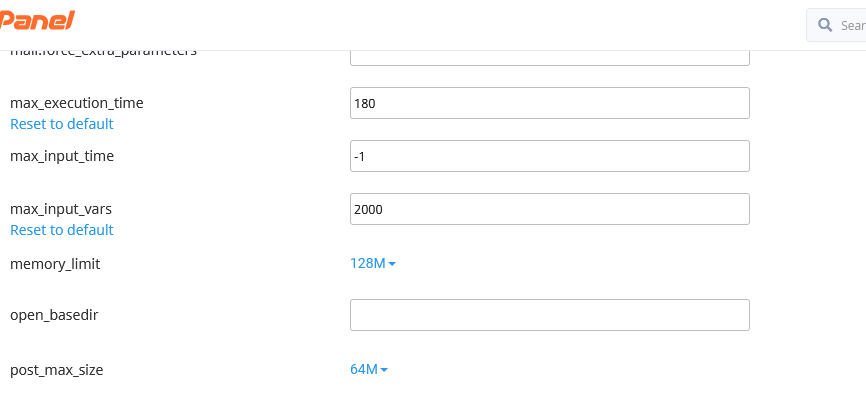
- The default value is 30 seconds. Increase it to 60 and click Save. If that doesn’t resolve the issue, increase the value further to 120-180 seconds.
Don’t set the max-execution-time value to 0 as it would allow PHP scripts to run for an infinite period and consume your server resources.
3. Try a Different Browser
If refreshing the page and increasing the maximum execution time limit of PHP scripts didn’t resolve the 504 gateway timeout error, the issue might be browser-related.
Try loading the WordPress site on another browser and using incognito mode to verify that it’s not a server-side error. Clearing the browser cache before reloading the page will also increase its load time and reduce the probability of server timeouts.
4. Flush DNS
DNS issues can originate on both the server and client sides. Server-side DNS issues generally occur on websites with unresolved IP addresses, while client-side ones are caused by an outdated or corrupted DNS cache.
If the WordPress site was recently moved to a different domain or server, the change might not have finished propagating globally. DNS propagation takes between 24-48 hours to complete, so use a DNS Look Up Tool to verify whether the process is complete.
To fix client-side DNS issues, try flushing your DNS cache. Like browsers, your operating system maintains a local cache. Flushing DNS will eliminate corrupted and outdated cache files that may be causing errors.
The way of doing it differs depending on your operating system. For instance, the following are the steps to flush the DNS cache on Microsoft Windows:
- Press Windows+R keys together, then type cmd to open the command prompt.
- Type ipconfig /flushdns and press Enter to clear the DNS cache files and reset the DNS resolver cache.
- A confirmation message will appear if the process is successful.
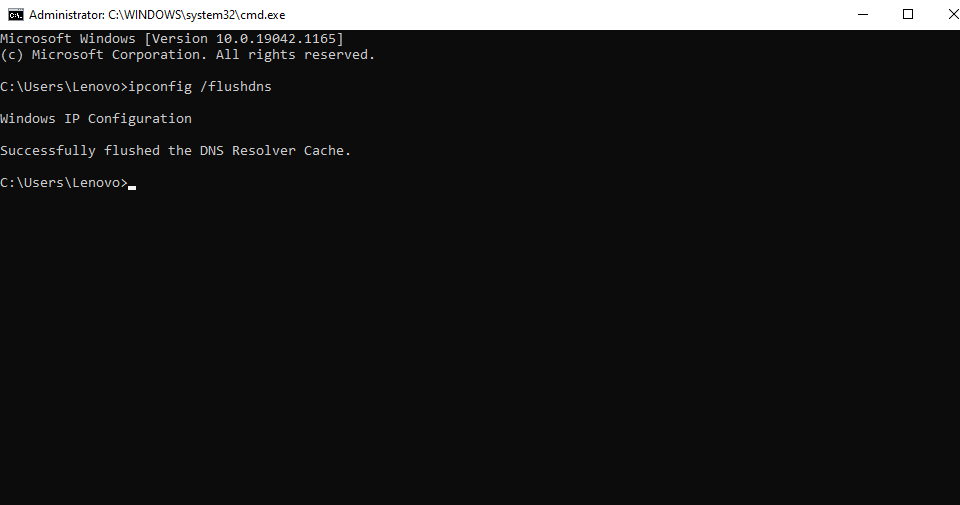
Flushing DNS cache is particularly beneficial to Google Chrome users, as the browser stores a separate cache from the operating system.
Temporary switching the DNS server to a public one is an excellent way to rule out the possibility of a DNS-related problem. Some of the most popular public DNS servers include Cloudflare 1.1.1.1, Google Public DNS, and Comodo Secure DNS.
5. Test with Different Devices
Try loading the website on a different computer, network connection, or mobile phone. You may also try rebooting the network devices to check if it’s a hardware issue or an internet connection problem.
If the 504 gateway timeout error persists on multiple devices, it’s likely a server-side problem.
6. Check the Error Log
Another possible cause of the 504 gateway timeout error is code corrupted by recent website changes or updates. In this case, checking the error log will help quickly pinpoint the issue.
Sino Soft users can activate the PHP error logging feature on CPanel. Here’s how to do it:
- Navigate to Select PHP version then options under the Options section of the CPanel Dashboard.
- Access the PHP Options tab and tick the log_errors box this will automatically save
If your hosting provider doesn’t offer PHP error logging by default and you’re using WordPress, you can enable debug mode by adding the following lines to the wp-config.php file:
define( 'WP_DEBUG', true );define( 'WP_DEBUG_LOG', true );define( 'WP_DEBUG_DISPLAY', false );Setting WP_DEBUG_LOG to true will document any errors in the wp-content/debug.log file. Meanwhile, WP_DEBUG_DISPLAY dictates whether or not debug messages will appear on HTML pages.
7. Check Plugins
In rare cases, a third-party WordPress plugin may be causing the 504 gateway timeout error. Certain plugins, particularly those related to caching, send requests to the server, thus increasing the workload of PHP workers, which might trigger the issue.
Outdated or incompatible plugins can also cause problems. Temporarily disabling all of them will help you check if there’s a faulty plugin.
Navigate to the wp-content directory and rename the plugins folder, which will disable all of your WordPress plugins. You can do this via your hosting account’s File Manager or an FTP client like FileZilla.
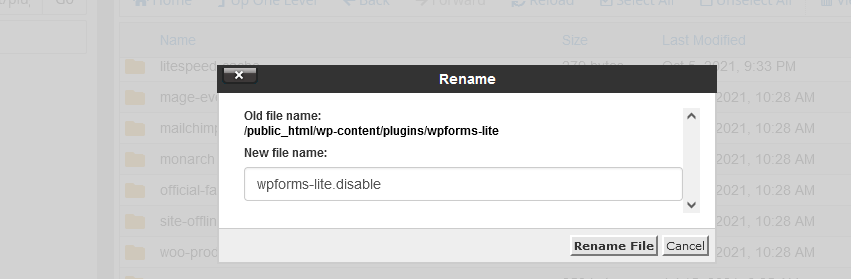
If your site works fine when all the plugins are disabled, the next step is to locate which of them is causing the 504 gateway timeout error. Restore the original name of the plugins directory and disable the plugins one by one to pinpoint the source of the issue.
8. Check CDNs
If you’re utilizing a Content Delivery Network (CDN) to serve content faster, it’s worth checking whether it functions properly.
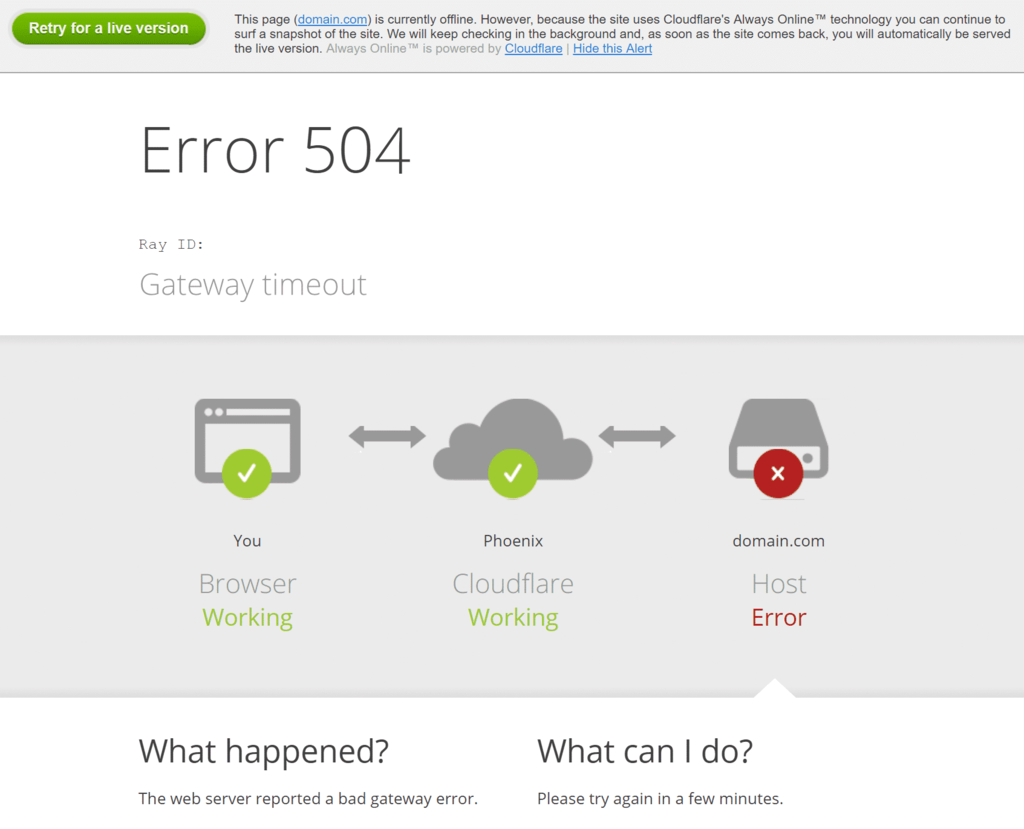
One of the most frequently used CDN solutions is CloudFlare, which also acts as a DDoS mitigation service. While using it, you can encounter two versions of the 504 gateway timeout error.
If the error message mentions CloudFlare, then the issue originates there. You can check the Cloudflare system status to clarify whether the company is aware of any network issues.
In this case, contacting CloudFlare support is the fastest way to solve the problem. Otherwise, disable the CDN entirely and wait until the DNS is fully propagated.

The following version of the 504 error page indicates the problem stems from the web hosting provider, which you should contact for assistance.
9. Tweak Server Settings
Web server issues are a common cause of the 504 gateway timeout error on websites powered by VPS hosting.
If you’re using the Apache web server, the error may be triggered by the execution time limit of PHP scripts.
The 504 error is usually caused by a proxy connection timeout on websites running on Nginx.
The following 504 error page indicates that the issue is related to an Nginx web server error:

In the following sections, we’ll discuss tweaking server settings and increasing specific resource limits to solve the 504 gateway timeout error on both platforms.
Apache
Apache users can increase the default timeout value in the httpd.conf file. Add the following line to the Apache configuration file to increase the default timeout value from 300 seconds to 600 seconds:
The new value will prompt the server to wait longer for the request before timing out.
You can also increase the max_execution_time limit in php.ini for PHP scripts to run longer:
After saving the changes, restart Apache. The 504 gateway timeout error should be gone if it was caused by an insufficient request timeout limit.
Nginx
If your VPS utilizes the Nginx server as a reverse proxy for Apache, try increasing the following values in /etc/nginx/conf.d/timeout.conf:
If you use Nginx with the FastCGI Process Manager (PHP-FPM), you will need to edit the PHP-FPM file. Navigate to /etc/php5/fpm/pool.d/www.conf and add the following line:
We also recommend increasing the max_execution_time in php.ini:
Keep in mind that the location of the configuration file varies based on the installation.
Save the changes, restart Nginx, and reload the website.
Conclusion
The 504 gateway timeout error is one of the most common HTTP response status codes that internet users encounter. Even though the error message contains limited information on the source of the issue, there are several different methods to troubleshoot the problem.
Here’s a recap of the ten possible solutions to the 504 gateway timeout error:
- Refresh the page.
- Check the hosting’s resource usage.
- Open the page on a different browser.
- Flush the DNS cache.
- Open the page on different devices and reboot the network devices.
- Check the error log for faulty code and misconfigurations.
- Check the installed third-party plugins.
- Check the CDN status.
- Tweak the Apache or Nginx configuration to resolve server connectivity issues.
We believe and hope this article has helped you correct the 504 gateway timeout error



