
How to Access Webmail Correctly
What is webmail or cPanel Webmail and how does one access it? How does one get webmail? To access webmail, or to gain access to the cPanel webmail login or aptly put, to get the cPanel webmail login URL, you must be in the right domain. The correct domain being your website name. Use your website’s correct domain before following the steps outlined below.
Firstly, webmail is an email application accessible via a web browser. It allows you to view your email accounts on any device, in a browser, as long as an Internet connection is available without any setup or email configuration.
There are a few different URLS that access your webmail:
While example.com/ webmail is the standard choice, the other options are available if the first one does not reach your webmail login due to a DNS error, firewall, or redirect.
Be sure to replace example.com with your actual domain name or if using server_ip with your actual IP address for your web server. The login page should look like the one below:
Accessing Webmail Through a Server’s IP Address
This method uses a server’s IP address provided by your hosting provider.
Enter the URL https://server_ip:2096 (HTTPS port) or http://server_ip:2095 (non-HTTPS port). Alternatively, use http://server_ip/webmail. Server_ip is the placeholder for the IP address of your hosting server.
Both of these URLs will take you to the webmail login page. There, you will have to enter the email address and password for your email account.

You can locate your hosting server’s IP address by navigating to the General Information box on the cPanel home screen after logging in as shown below.
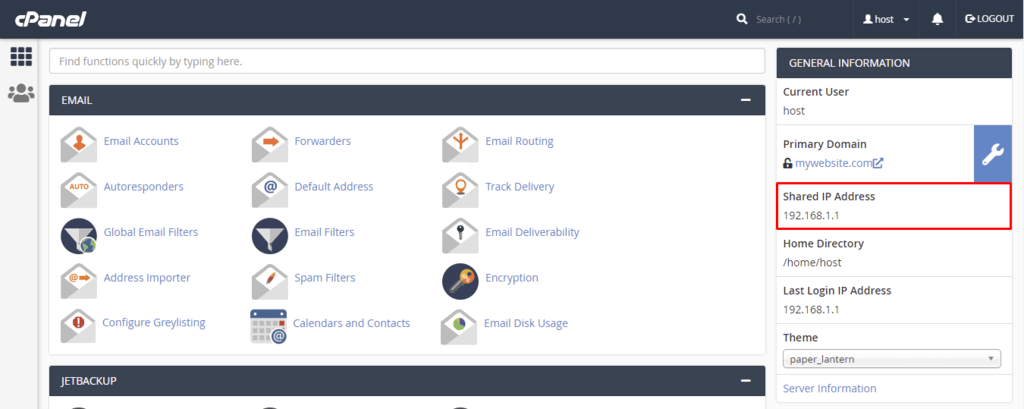
Access Webmail Through Your Domain Name
Remembering the IP address to access webmail may be impractical. Instead, you can use your domain name like this: example.com/webmail/.
Replacing the /webmail part with the port number will also work. Enter example.com:2095 for a non-HTTPS port or example.com:2096 for an HTTPS port. The webmail interface should look like this:
Note: If your webmail password doesn’t work, ensure you’ve put the right domain name (your website name) before attempting to gain access to webmail.

To get your domain name, check in the General Information box on the cPanel dashboard. It will be labeled Primary Domain as shown below.

Accessing Webmail via cPanel’s Email Accounts Section
Navigating to Email Accounts under the Email section of your cPanel dashboard is the easiest way to access the webmail interface.
This method will also let you easily connect webmail accounts to any of your mobile devices.

Select the email account you want to access, and click Check Email. Here, you can also pick a default email address to which to forward emails sent to invalid addresses with your domain.

A window will pop up, prompting you to choose a webmail client. You’ll see two webmail applications to choose from ‒ Roundcube and Horde. Click on either, but the most preferred is Roundcube and you'll be logged in and see your email sif you have any.

Roundcube: the most popular webmail client, it has a look and feel you'd expect from an email application but is available inside a browser. You can import and use an address book and use IMAP folders with the drag-and-drop organization. You can set up preset responses to save time and write with spell check in a rich text HTML composer when composing emails.
Horde: more than just a webmail client—it's a collection of simple online apps for collaboration including, webmail, calendar, notes, and tasks. These extra features do have some limits, however. For example, the collaborative features only work inside Horde, so to share a calendar entry or a note, the person you're sharing it with would also need to use Horde.
Check Open my inbox when I log in to set the webmail client you chose as the default one and click Open.
Access Webmail Using a Custom Subdomain (Advanced)
You can also log in using a custom subdomain that redirects to your webmail URL.
- Log in to your webmail using one of the options listed above.
- Select a webmail client to access your mail.
- Copy the complete URL from your address bar.
- Go back to your cPanel and click Domains > Subdomains from the main menu.
- Under Create a Subdomain, type a name for your new subdomain, such as "themail".
Warning: Do NOT use "mail" as your subdomain since it's already in use and will result in conflicts. - Select your domain from the drop-down menu, then click Create.
- From the main menu, go to Domains > Redirect.
- Under Add Redirect, select your new subdomain from the drop-down menu.
- Paste your webmail URL into the Redirects To field.
- Save by clicking the Add This Redirect button.



