
Setting Up mail on iPhone (iOS)

- Step 1 - Go to Settings > Accounts & Passwords
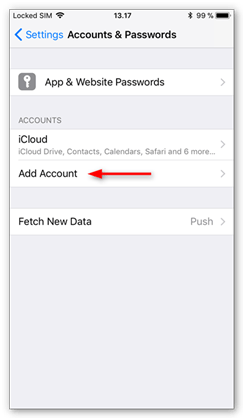
- Step 2 - Tap Add account
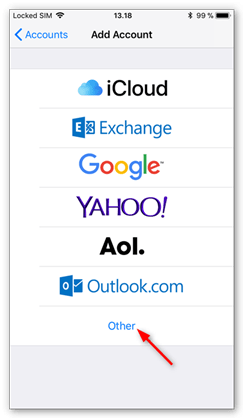
- Step 3 - Tap Other
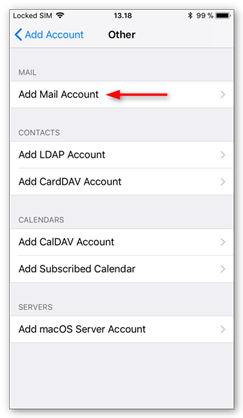
- Step 4 - Tap Add Mail Account
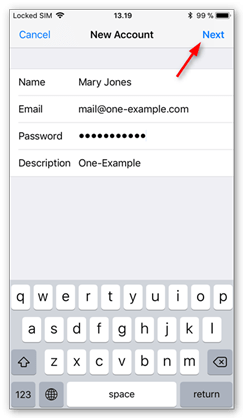
- Step 5 - Enter your account details
- Step 6 - Select IMAP
- Step 7 - Enter your server settings
- Step 8 - Save the account
- Step 9 - Tap the account you added
- Step 10 - Tap your account again
- Step 11 - Tap Advanced
- Step 12 - Check Mailbox behaviors
- Step 13 - Enter IMAP Path Prefix
- Step 14 - Done!
Step 1 - Go to Settings > Accounts & Passwords
Open Settings on your iPhone and tap Accounts & Passwords.

Step 2 - Tap Add account
Tap Add account.
Step 3 - Tap Other
Select Other as account type.
Step 4 - Tap Add Mail Account
Tap Add Mail Account.
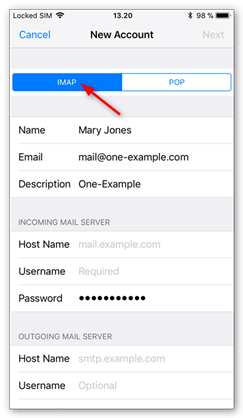
Step 5 - Enter your account details
Enter the account details for the email you want to add:
- Name: this will be visible as the sender.
- Email: the address you want to add.
- Password: you use it to log in to Webmail.
- Description: a name for the account on your device.
Tap Next to continue.
Step 6 - Select IMAP
Tap IMAP as the account type.
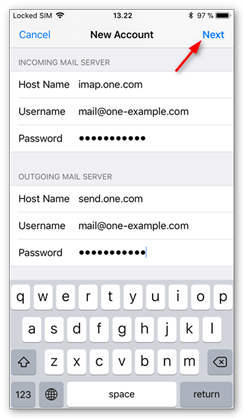
Step 7 - Enter your server settings
Enter the following settings:
Incoming server:
- Host name: imap.one.com
- User name: your email account
- Password: the one you use for Webmail
Outgoing server:
- Host name: send.one.com
- User name: your email account
- Password: the one you use for Webmail
Tap Next to continue.
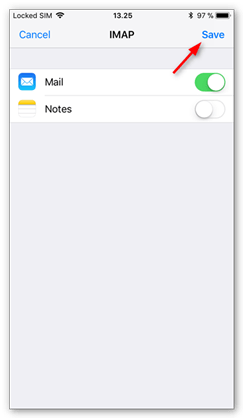
Step 8 - Save the account
Disable syncing of Notes, if this is enabled. Tap Save.
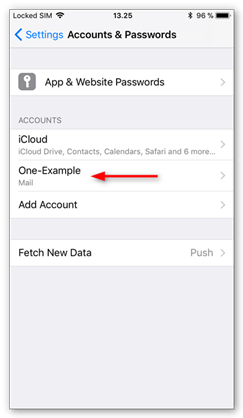
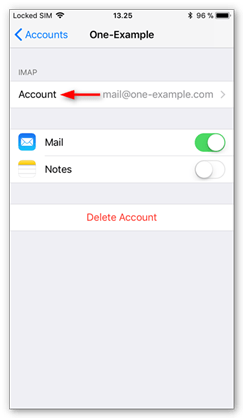
Step 9 - Tap the account you added
Tap the account you just added. You can recognize it by the description.
Step 10 - Tap your account again
Tap your account again to open settings.
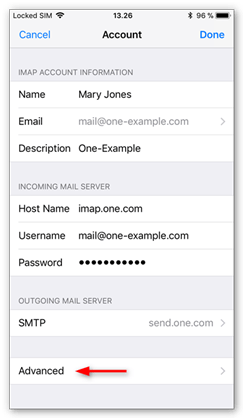
Step 11 - Tap Advanced
Tap Advanced, at the bottom of your screen.
Step 12 - Check Mailbox behaviors
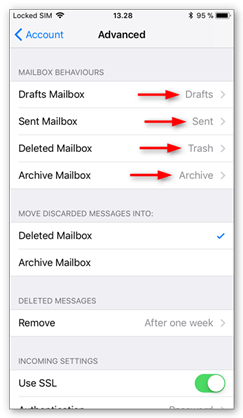
Check if the Mailbox behaviors are set correctly. These settings determine where your emails are saved.
You need to select the following folders on the server:
- Drafts mailbox: Drafts
- Sent mailbox: Sent
- Deleted mailbox: Trash
- Archive mailbox: Archive
If no folder, or a different one is selected, tap the mailbox and select the correct folder on the server. The name of the folder is in English.
Note: If the folder is not listed, log in to Webmail and place an email in the folder that is not available. Then try again.
Step 13 - Enter IMAP Path Prefix
Scroll down to the bottom of the screen and enter INBOX as IMAP path prefix, all in capitals.

Step 14 - Done!
Your account is now set up correctly.
Read Also: How to set up webmail on android OS (Phone)
Courtesy of One
If you need specific help, contact our Support Team.
Feel free to click the thumbs up below to help many others in need of similar solutions, thank you and God bless!



